

Live Translation Without Internet, on iPhone and Apple Watch
Updated
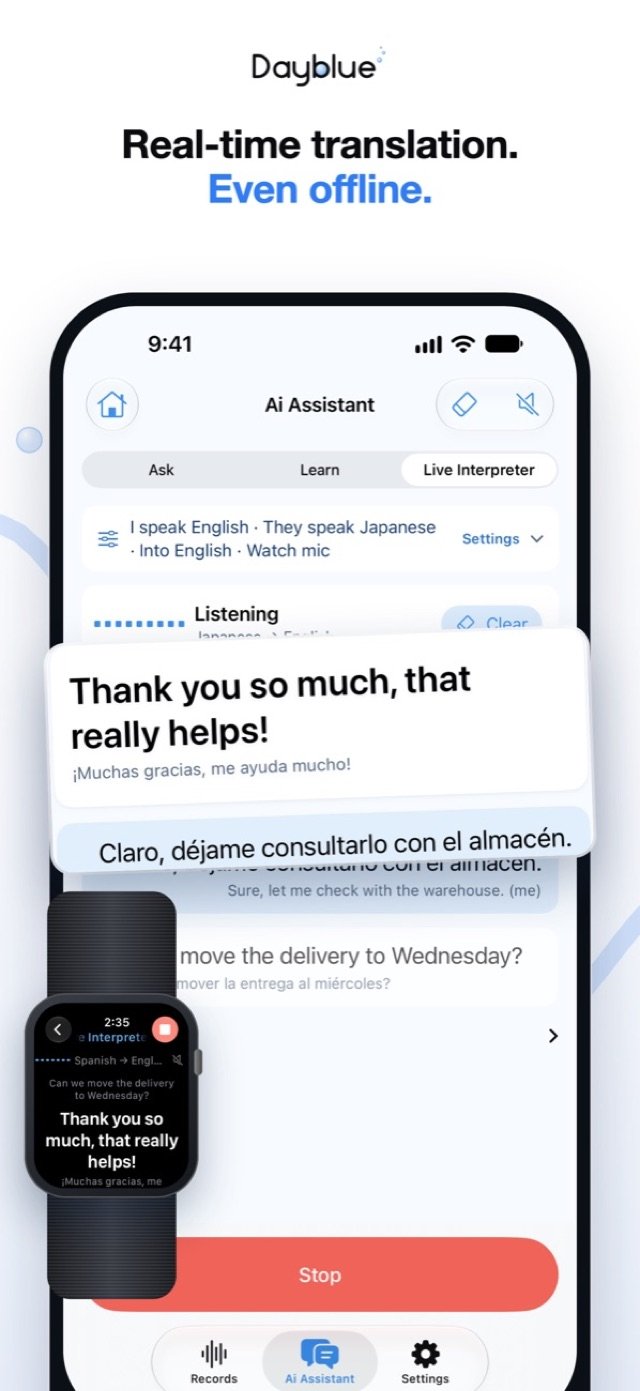
You need an offline translation app for iPhone most when the signal drops right as the conversation matters. Dayblue's Live Interpreter recognizes the other person's speech on your iPhone and translates it on the device with Apple's translation, so you read and hear it in your language as they speak. After a one-time language download, it works with no internet, and the translation can show on your Apple Watch too.
A day on a factory floor in Japan
You fly to Japan to visit a parts supplier. Your contact meets you at the station and walks you through the plant. They speak Japanese. The signal inside is weak, and you turned off data roaming before you left.
Before the trip, you downloaded Japanese in Dayblue. Now you open Live Interpreter and hold your iPhone. As your contact explains the new assembly line, the English translation appears on the screen and is read aloud. When you need both hands to look at a sample part, you glance at your Apple Watch instead.
At lunch, the plant manager joins and the conversation speeds up. You keep following along. When the visit is over, you end the session. Dayblue saves it as a record in English. On the flight home, you scroll back through what was said, replay the original Japanese for the lines that matter, and find the new Japanese words waiting in your Word Book.
The same works at a family dinner when your partner's grandparents switch to Spanish, or on a call with a supplier in Seoul. It is a conversation translator that keeps working offline, wherever the conversation happens.
How Live Interpreter works
Live Interpreter lives in Dayblue's Ai Assistant. Here is the flow, start to finish.
- Download your languages once. In Dayblue, open Ai Assistant → Live Interpreter, then Settings → Language packs, and choose the languages you expect to hear. The first time you open Live Interpreter, Dayblue asks you to do this. Do this at home or at the hotel while you have a connection.
- Open Ai Assistant and tap Live Interpreter. Dayblue starts listening for the other person.
- Let them talk. Speech recognition runs on your iPhone itself. Apple's translation, also on the device, turns what they say into your native language.
- Read it, hear it, or glance at your wrist. The translation shows on your iPhone and is read aloud. It also appears on your Apple Watch, and you can use the Watch's microphone when it is closer to the speaker.
- Finish the session. Dayblue saves it as a record in your native language. Foreign words from the conversation go into your Word Book, where you can practice them later with Repeat After Me.
Live translation on Apple Watch
Live translation on Apple Watch keeps your eyes up and your attention on the person in front of you. On the Watch, it runs inside a "workout" session, so it keeps going when you lower your wrist. Dayblue reads no health data and saves no workouts, and you can turn this setting off.
Your iPhone still does the recognition and translation, so keep it nearby. If you also want to record notes on your wrist, see how Dayblue works as an Apple Watch voice recorder with transcription.
Translating a phone call
iOS does not give apps the call audio. So for Call translation, put the call on speaker, and your Apple Watch listens to the other person for you. You follow their words in your language while the call goes on.
Which languages it covers
Live Interpreter covers Chinese, English, Japanese, Korean, Spanish, French, German, Portuguese, Italian, Vietnamese, Thai, Russian and more. The list in the app shows what your iPhone can both recognize and translate, so check it before you travel.
What works offline, and what needs internet
Real-time translation without internet is the point of Live Interpreter. Here is the full picture, so nothing surprises you on the road.
Works with no internet, after the one-time downloads:
- Live Interpreter, once your languages are downloaded in Live Interpreter → Settings → Language packs
- Live translation on your Apple Watch, with your iPhone nearby
- Call translation through your Watch
- Transcribing your recordings, once the on-device models have downloaded over Wi-Fi (about 2.6 GB on some iPhones)
- Key points, decisions and to-dos, written by the built-in model on an iPhone with 6 GB of memory or more (iPhone 12 Pro / 12 Pro Max, 13 Pro / 13 Pro Max, and iPhone 14 or later)
Needs internet:
- The one-time downloads themselves
- Cloud AI, which is optional and off by default
- Web lookups for weather, exchange rates, encyclopedia and news, also off by default
- Weather in Today's Dayblue, which asks you first
The same on-device approach powers Dayblue's AI meeting notes on iPhone, so a meeting with a foreign supplier and a chat at a train station are handled the same way.
Privacy, in plain words
What you hear stays with you. Recordings, text, photos and places stay on your own devices. Dayblue has no ads, no analytics, no tracking and no account.
If you turn on Cloud AI, you connect your own API key from a provider you choose. Content then goes straight from your device to that provider, and you pay them directly. Web lookups, when on, send only the query. Weather sends only an approximate location (about 1 km) to Apple Weather. You can read the details in the privacy policy.
Honest limits and tips
- Translations come from AI and can be wrong. For anything important, like a date, a quantity or a safety instruction, replay the original audio or ask the person to confirm.
- Ask before you record. Live Interpreter saves the session as a record. Ask people for consent before you record them.
- Keep your iPhone close. The Watch cannot interpret on its own. The iPhone does the recognition, so it must be nearby.
- Check your iOS version. Dayblue needs iOS 26 for transcription and live interpretation. Live Interpreter, live translation on the Watch and Call translation do not run on earlier versions. The Watch features need watchOS 11.
- Download before you go. Get your language packs on reliable Wi-Fi before the trip, not at the airport gate.
- Get the microphone close. Hold your iPhone toward the speaker, or use your Watch's microphone when it is nearer to them.
FAQ
Does Dayblue translate without internet?
Yes. After you download your languages once in Live Interpreter → Settings → Language packs, Live Interpreter recognizes speech on your iPhone and translates it with Apple's translation on the device. No internet is needed.
Can I see live translation on my Apple Watch?
Yes. The translation shows on your Apple Watch, and you can use the Watch's microphone. Your iPhone must be nearby, because it does the recognition.
Do I need iOS 26?
Yes. Dayblue needs iOS 26 for transcription and live interpretation. That includes live translation on your Apple Watch and Call translation. On earlier versions, Dayblue can only record.
What happens when the conversation ends?
Dayblue saves the session as a record in your native language. Foreign words you heard go into your Word Book for later practice.
Can it translate a phone call?
Yes, with your Apple Watch. Put the call on speaker and the Watch listens to the other person, because iOS does not give apps the call audio.
Coming soon to the App Store
Dayblue is coming soon to the App Store for iPhone, with an optional Apple Watch app. Learn more on the Dayblue home page. See how the same on-device approach handles meeting notes on iPhone, and how a single tap turns your wrist into an Apple Watch voice recorder. Questions? Visit Dayblue support.
Dayblue is coming soon to the App Store.
 Coming soon to the App Store
Keep reading
- AI Meeting Notes on iPhone, Written on Your DeviceTranscribe meetings on iPhone with speaker identification, key points, decisions and to-dos, all written on the device. No account, no subscription.
- An Apple Watch Voice Recorder That Turns Speech into TextRecord on Apple Watch with one tap, even without your iPhone nearby. Dayblue then transcribes it on your iPhone, with speakers and key points.